Guide
How to remove filler words from a video on a Mac
Nobody talks in finished sentences. One “um” is harmless; forty of them, plus a few long pauses, make a two-minute demo feel slow. You can remove them by hand on a timeline, which is precise but slow, or edit the video by editing its transcript. This guide shows both on a Mac.
The short answer
- By hand: in iMovie, find each filler by ear or on the waveform, hold R and drag across it, and press Delete. Expect it to take several times the length of the video.
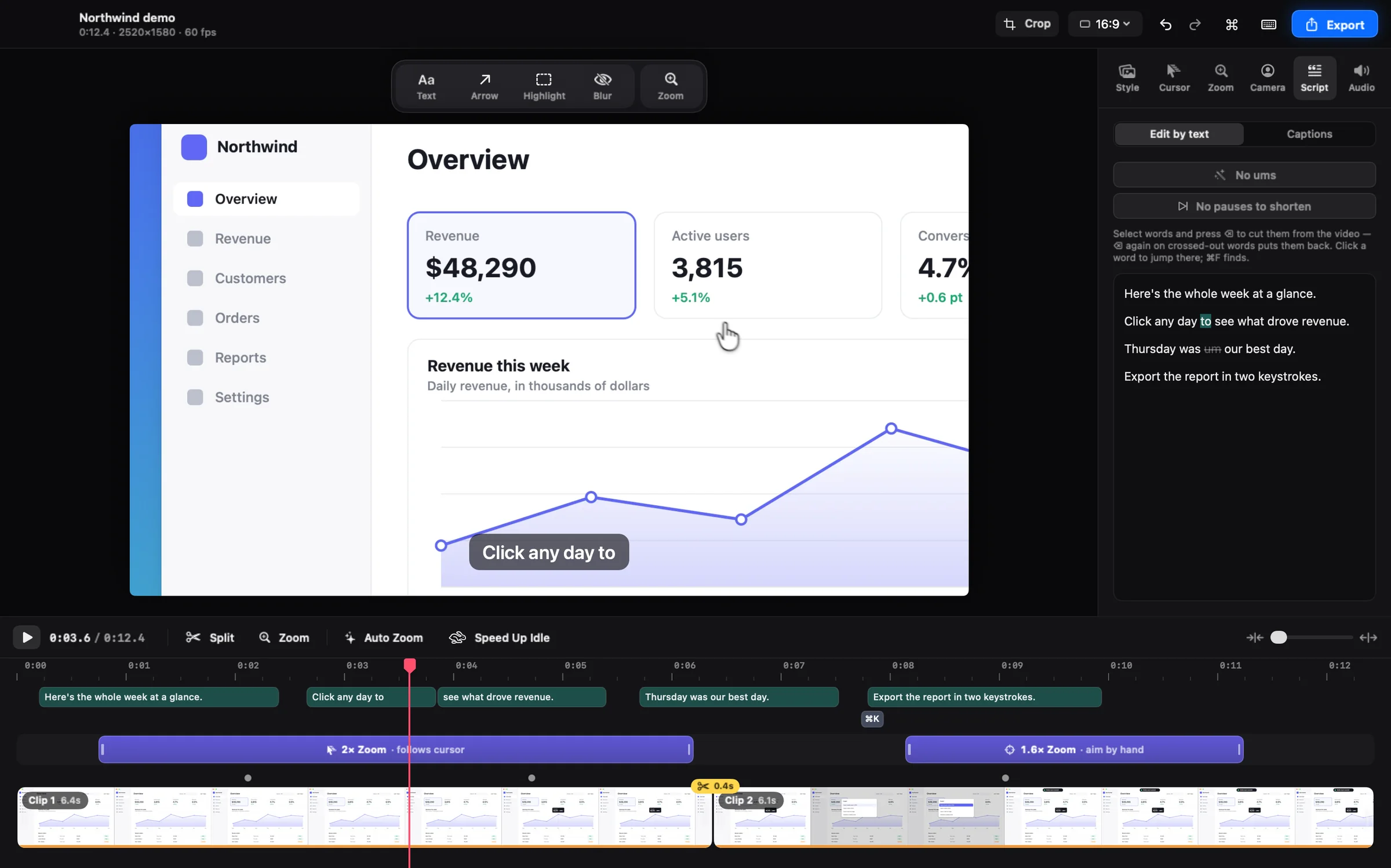
- By text: in Shotnix, transcribe the recording on your Mac, click Remove ums to cut filler words in one go, click Shorten pauses to trim long silences, and delete any other words right in the transcript.
- Every cut can be restored, and captions follow the edit.
What to cut and what to keep
Filler words are hesitation sounds: um, uh, er, hmm. They carry no meaning, so cutting them is almost always safe. Verbal habits such as “so”, “like”, “basically”, and “you know” are different: sometimes filler, sometimes part of the sentence. Those need a human decision.
Pauses work the same way. A long silence while you think is dead air. A pause while a page loads or while you click through a menu is part of the demo, and cutting it makes the picture jump.
Method 1: Cut filler words by hand in iMovie
- Create a new movie in iMovie, choose File → Import Media to add the recording, and drag it to the timeline.
- Click Settings at the top right of the timeline and select Show Waveforms. Pauses show as flat stretches; fillers often show as short, isolated bumps.
- Play the movie with the Space bar. When you hear a filler, stop and zoom the timeline in until you can see it clearly.
- Hold the R key and drag across the filler to select just that range, then press Delete. Or move the playhead to each side of it, press ⌘B to split, select the piece in between, and delete it.
- Play across the cut. If words run into each other, press ⌘Z and leave a little more breath.
- Repeat for every filler and long pause, then choose File → Share → File to export.
Note. iMovie has no transcript, so every filler has to be found by ear, and each cut means listening, selecting, and checking. For one or two cuts, QuickTime Player also works: choose View → Show Clips, use Edit → Split Clip (⌘Y) on each side of the filler, select the piece, press Delete, and click Done.
Method 2: Edit by text in Shotnix
- Record with Microphone on, or open an existing video with Open With → Shotnix in Finder.
- Open the Captions tab, choose the language you spoke, and click Transcribe. Transcription runs on your Mac, nothing is uploaded, and every word gets its own timing.
- In Edit by text, click Remove ums. Every um and uh in the transcript is cut from the video in one step, and the button shows how many it found.
- Click Shorten pauses to trim long silences down to a breath. Only pauses where nothing happens on screen are shortened, so time spent clicking, typing, or scrolling through the demo is never cut.
- Read the transcript for anything else: a false start, a repeated sentence, a stray “you know”. Select the words and press Delete to cut them. Click any word to jump there, or press ⌘F to find a phrase.
- To undo a cut, press Delete again on the crossed-out words, click the marker on the timeline where material was removed, or press ⌘Z.
- Export with ⌘E. Captions drop the words you cut, and saved subtitles (.srt or WebVTT) match the edited video.
Note. Transcribing also creates captions, and they show in the video by default. If you only want the cuts, turn off Burn captions into the video in the export sheet, or switch the Captions tab from Edit by text to Captions and turn off Show captions.
Remove ums knows which language you speak
Hesitation sounds differ between languages, and some are real words elsewhere: “um” means “a” in Portuguese. Remove ums uses the transcript's language, looks for that language's hesitation sounds, and leaves real words alone. Choose the right language before you transcribe.
On macOS 26 and later, Shotnix transcribes with Apple's newer on-device speech model, which downloads once. On macOS 13 to 15, it uses the on-device dictation model for your language; if a language is missing, turn on Dictation for it in System Settings → Keyboard.
Limits worth knowing
- Remove ums cuts hesitation sounds only. Habits that are real words, such as “like” or “you know”, stay until you delete them in the transcript.
- It can only cut fillers that made it into the transcript. Speech recognition sometimes leaves out a quiet “um”, so play the result once and cut any stragglers on the timeline: split with S, or ⇧-drag across the sound and cut the range.
- Shorten pauses reads what Shotnix records about the screen (the pointer, clicks, typing, and scrolling) to tell whether anything is happening. A video made with another app has none, so listen to the shortened pauses before you export.
- Cutting every pause makes speech sound breathless. Shorten pauses leaves a short breath, and you can restore any pause you want to keep from its marker on the timeline.
Say fewer ums next time
Editing is faster when there is less to cut. A few habits help before you press Record.
- Pause instead of filling. A silent beat is easier to cut than an “um”, and Shorten pauses can trim it for you.
- Write down the steps, not a script. A short list of the clicks you'll make keeps you on track without sounding read aloud.
- Do one practice run. The second take is almost always smoother than the first.
- Slow down. Fillers tend to appear when you talk faster than you think.
- Leave a beat before and after each step. Clean gaps make every cut easier to place.
Questions
How do I remove ums from a video automatically?
Transcribe the video and cut the filler words from the transcript. In Shotnix, click Transcribe in the Captions tab, then Remove ums in Edit by text. It runs on your Mac, and every cut can be restored.
Can iMovie remove filler words automatically?
No. iMovie has no transcript or filler detection. You find each filler by ear, select it by holding R and dragging, and press Delete.
How do I remove long pauses from a video on a Mac?
In iMovie, turn on Show Waveforms, find the flat stretches, select each one by holding R and dragging, and delete it. In Shotnix, Shorten pauses trims long silences to a breath in one click, only where nothing happens on screen.
Will removing filler words make my video look choppy?
Cuts in speech are rarely noticeable when a short breath is left around them. In a screen recording, a cut can show if the screen changes during the removed moment, which is why Shotnix's Shorten pauses skips pauses where something happens on screen. If a cut looks jarring, restore it.
Do captions update when I cut words?
In Shotnix, yes. Captions follow your cuts and drop the words you removed, and the subtitle file you save (.srt or WebVTT) matches the edited video.
Is my voice uploaded to make the transcript?
Not with Shotnix. Transcription uses Apple's on-device speech recognition and runs entirely on your Mac.
Try it on your own screen.
Shotnix is free, open source, and local, with no watermark. Download the notarized app, or star the repository to follow along.
11.7 MB · Apple silicon (M1 or later) · macOS 13+ · notarized by Apple · MIT license