Edit by text
Edit your video by editing the text. Cut every um in one click.
Trimming a narrated recording on a waveform means scrubbing back and forth to find each stumble. Reading is faster. Shotnix transcribes your narration on your Mac and ties every word to its moment in the video, so you can select a sentence and press Delete to cut it, like editing a document. Two buttons handle the most common cleanup: Remove ums and Shorten pauses.
⌫Cut the selected words from the video
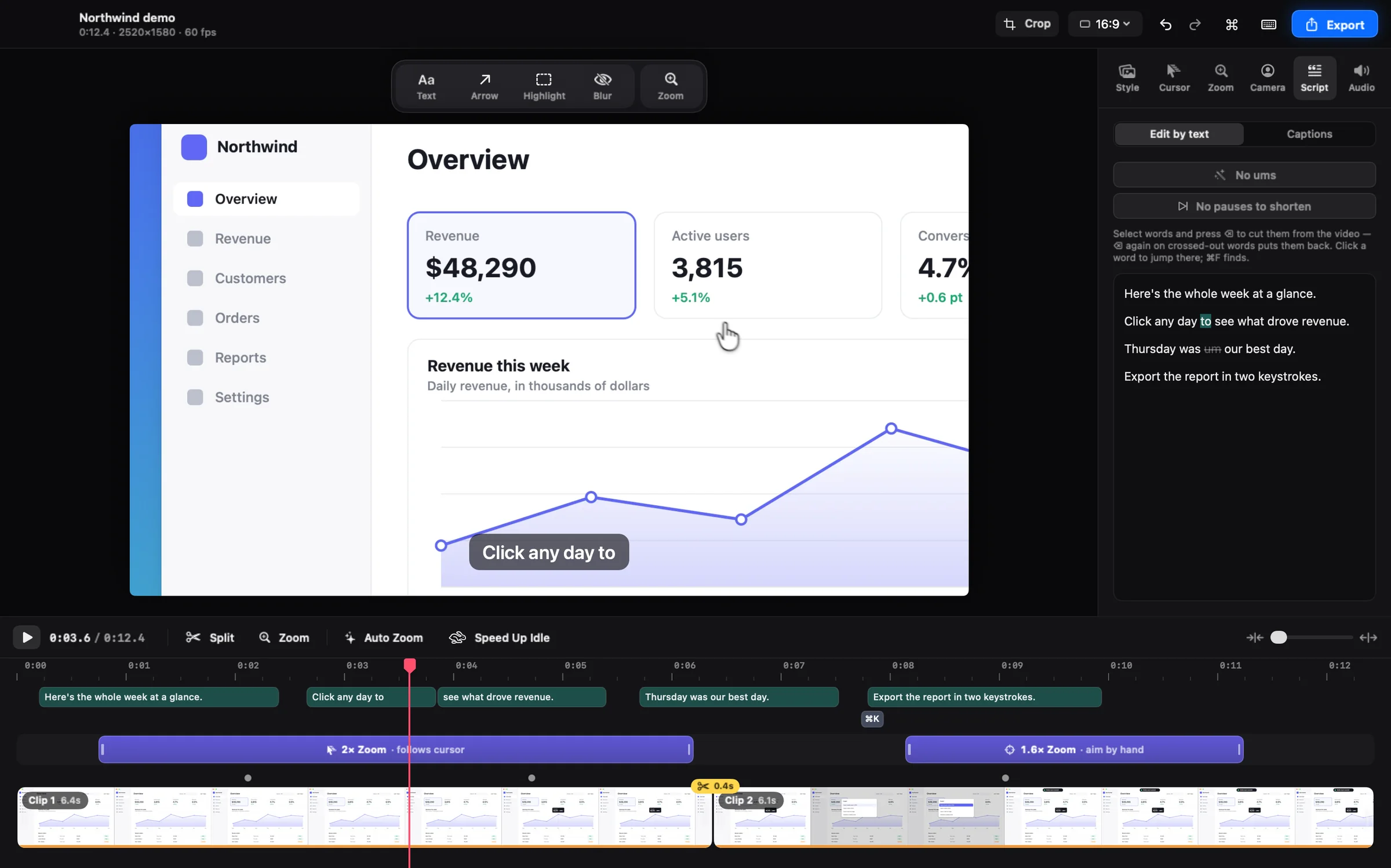
How editing video by text works
In the Captions tab, click Transcribe. Shotnix transcribes the recording on your Mac and times every word. Switch to Edit by text and the transcript becomes an editor: select words and press Delete, and those moments leave the video, picture and sound together.
Cut words stay in the transcript, crossed out, so you can see what you removed. Select them and press Delete again to bring them back. Click any word to jump the playhead there, and press ⌘F to find one. Cuts also show on the timeline as markers you can click to restore, and Undo covers everything.
Remove filler words from a video in one click
Remove ums finds hesitation sounds such as um, uh, and er, matched to the transcript's language, and cuts them all at once. The button shows how many it found before you click. It only counts sounds that are never real words in that language, so real words are left alone.
It leaves habits that are real words, such as 'so', 'like', or 'you know'. Those are sometimes needed, so read through and delete the ones you don't want.
Shorten pauses without cutting the demo
Long silences drag. But in a screen recording, silence often means you're showing something: opening a menu, dragging a file, pointing at a result. Shorten pauses trims silences over a second down to a short breath, and only where nothing happens on screen: no pointer movement, clicks, typing, or scrolling. The part where you're demonstrating stays in.
Captions follow every cut
The same transcript makes your captions, so words you cut disappear from the captions too, and saved subtitles (.srt or WebVTT) match the edited video.
Tips for a clean edit
- Run Remove ums and Shorten pauses first, then read through for the rest.
- Cut whole phrases where you can. Each cut also removes the short gap after the words, so sentences close up naturally.
- Watch the picture as well as the words. Deleting a word also removes what was on screen while you said it. Shorten pauses protects on-screen activity; a manual cut doesn't.
- Want a clean slate? Start over from the original recording is in the command palette (⌘K).
Doing it by hand
Without a transcript, removing an um means finding it on the waveform, splitting the clip on both sides, and deleting the piece. In iMovie that is a few steps per um, and a ten-minute narration can have dozens.
Limits
- Edit by text needs speech. A recording without narration has no transcript to edit.
- Transcription has the same requirements as captions: on macOS 26, Apple's newer on-device speech model downloads once; on macOS 13 to 15, the language needs its on-device dictation model.
- Shorten pauses uses what Shotnix records about the screen (the pointer, clicks, typing, and scrolling) to spot on-screen activity. On a video from another app it can't see that, so it shortens every silence over a second. Review the result.
- Shotnix runs on Apple silicon Macs (M1 or later) with macOS 13 or newer.
How to do it in Shotnix
- Transcribe in the Captions tabOpen the recording, go to the Captions tab, and click Transcribe. It runs on your Mac.
- Click Remove umsEvery um and uh is cut in one step. The button shows how many it found.
- Click Shorten pausesSilences over a second shrink to a breath, except while you're moving the pointer, clicking, typing, or scrolling.
- Delete anything elseSelect words in the transcript and press Delete. Press Delete again on crossed-out words to restore them.
- Play it back and exportCaptions and subtitle files follow every cut. Press ⌘E to export.
Questions
How do I remove um from a video on Mac?
Open the video in Shotnix, transcribe it in the Captions tab, and click Remove ums. Every um, uh, and similar hesitation sound is cut in one step. Without a transcript, you would find each one on the waveform and split around it by hand.
What does it mean to edit video by editing text?
The editor shows a transcript where every word is tied to its moment in the video. Deleting words deletes those moments, picture and sound, so trimming a talking recording feels like editing a document.
Will Shorten pauses cut the part where I'm clicking through the demo?
No. It only shortens silences where nothing happens on screen: the pointer is still, and nothing is clicked, typed, or scrolled. It knows from the data Shotnix records with the video. On videos from other apps, which have none, it shortens every silence over a second.
Can I undo a cut made in the transcript?
Yes. Select the crossed-out words and press Delete again, click the marker on the timeline, or use Undo. Your original recording is never changed.
Does Remove ums also cut words like 'like' and 'you know'?
No. It cuts hesitation sounds that are never real words. 'Like' and 'you know' are real words that are sometimes needed, so you select and delete those yourself.
Is my recording uploaded to be transcribed?
No. Transcription uses Apple's on-device speech recognition, so it runs on your Mac and nothing is uploaded.
Try it on your own screen.
Shotnix is free, open source, and local, with no watermark. Download the notarized app, or star the repository to follow along.
11.7 MB · Apple silicon (M1 or later) · macOS 13+ · notarized by Apple · MIT license