Captions
Add captions to your screen recordings, made on your Mac.
Plenty of people watch video with the sound off, and some viewers can't hear it at all. Captions make your screen recording work for both. Shotnix transcribes your narration on your Mac, times every word, and turns the result into short caption lines that follow your edits. It's free, and nothing is uploaded.
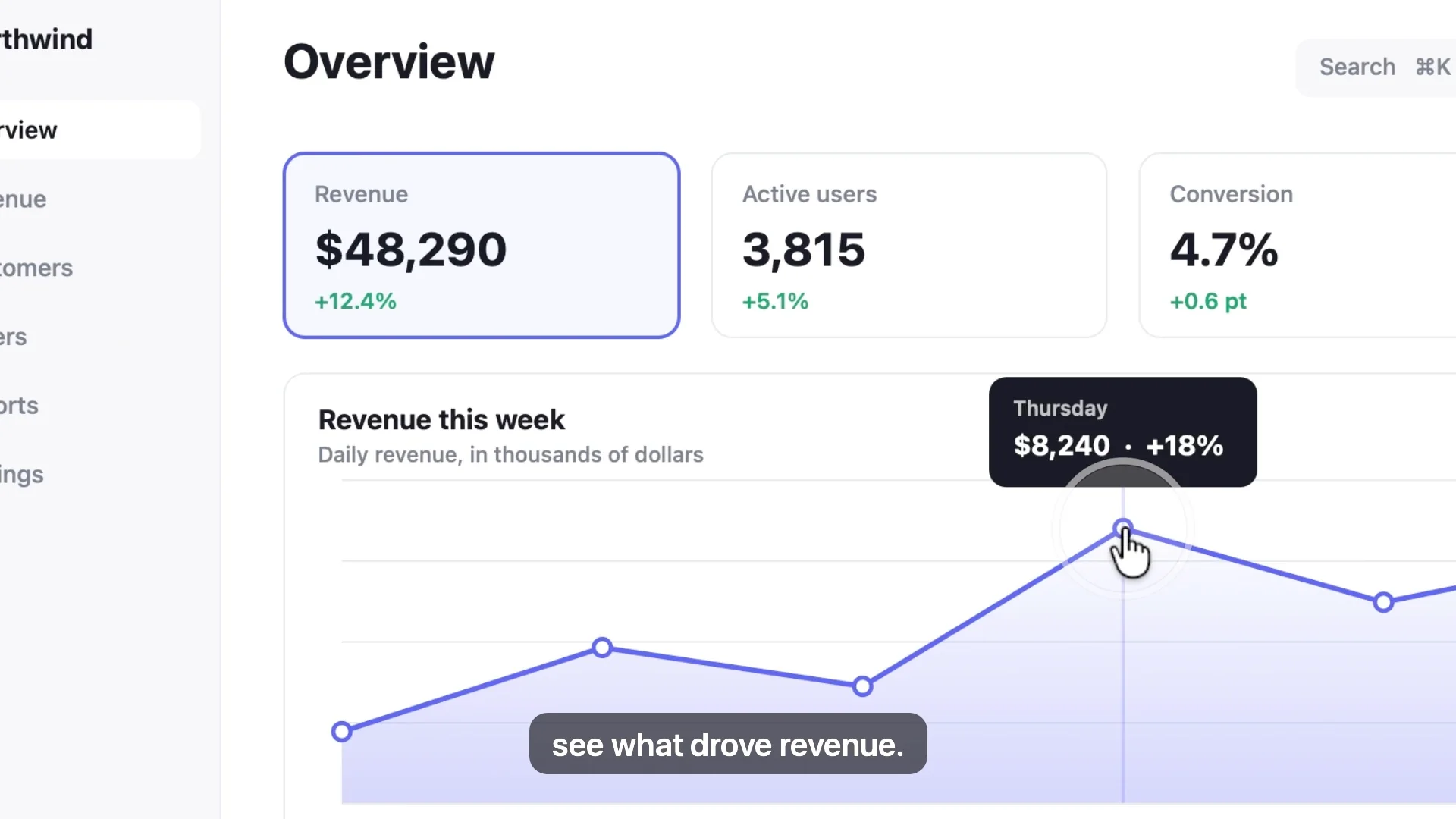
How Shotnix transcribes a screen recording
Open the recording, go to the Captions tab, check the language, and click Transcribe. Shotnix listens to the recording on your Mac and times every word. On macOS 26 it uses Apple's newer on-device speech model, downloaded once. On macOS 13 to 15 it uses the language's on-device dictation model.
Captions come from your voice alone. When you record your microphone and your Mac's sound, music and app sounds never end up in the captions.
One transcript powers two things: captions, and editing the video by deleting words. The two stay in step as you cut.
Captions people can read
- Short lines that follow your cuts. Remove a section and its captions go with it.
- Words light up as they're spoken, which helps viewers keep their place.
- Four looks: Classic, Bold outline, Minimal, and Highlight, with your own color for the spoken word.
- Three sizes (S, M, L) and two positions (top or bottom).
- Edit the text of any line, or drag and trim caption chips on their own timeline lane to fix timing.
- Chinese, Japanese, and Thai captions are spaced correctly.
- In vertical video, captions stay put while the screen pans.
Burned in, or as .srt and WebVTT subtitle files
Captions you see in the preview are drawn into the exported video, because the same renderer makes both. For platforms that accept subtitle files, click Save Subtitles and pick .srt, or .vtt (WebVTT) for web players. The file matches the edited video, not the raw recording, so the timings still line up after cuts.
Prefer captions that viewers can switch off? Turn off Burn captions into the video in the export sheet, and upload the subtitle file next to the video.
Translate captions on your Mac
On macOS 15 and later, translate your captions into another language with Apple's on-device translation. Install the language in System Settings first; nothing is uploaded. Each translated line keeps the timing of the line it came from, and you choose which language shows in the video.
When captions matter most
- Social feeds, where videos often start playing muted.
- Tutorials full of product names, shortcuts, or code terms, which are easier to follow when you can read them.
- Viewers who are deaf or hard of hearing, or who are watching in a second language.
- Anywhere people can't turn the sound up: an open office, a train, a waiting room.
Tips for accurate captions
- Record with your microphone on. Captions come from your voice, not from music or your Mac's sound.
- Keep the mic close and the room quiet. Clear audio transcribes better.
- Choose the language before you transcribe if it isn't your Mac's language.
- Proofread names and product terms. Speech recognition handles everyday words well and can stumble on jargon, so fix any line by editing it.
What macOS can do on its own
The built-in recorder, QuickTime Player, and iMovie don't turn speech into captions. Live Captions in macOS shows live text of whatever is playing, which is useful for following along, but it doesn't add captions or a subtitle file to your video. In iMovie you can type titles one at a time, which is slow for anything longer than a minute.
Limits worth knowing
- The languages on offer are the ones your Mac can transcribe on-device.
- On macOS 13 to 15, a language needs its on-device dictation model. If it's missing, Shotnix tells you: turn on Dictation for that language in System Settings → Keyboard, or pick another language. macOS also asks once for permission to use Speech Recognition.
- Styling stays simple: four looks, three sizes, top or bottom, and a highlight color. There's no font picker.
- Translation needs macOS 15 or later, with the language installed in System Settings.
- Shotnix needs an Apple silicon Mac (M1 or later) with macOS 13 or newer.
How to do it in Shotnix
- Record with your microphone onNarrate as you go. Other videos with speech work too: open them with Open With or drop them on the app.
- Open the Captions tab and click TranscribePick the language first if it isn't your Mac's. Transcription runs on your Mac.
- Review and styleFix any line, drag or trim caption chips on the timeline, and choose a look, size, and position.
- Export, and save subtitles if you need themCaptions are drawn into the MP4 unless you turn that off. Save Subtitles writes .srt or WebVTT for platforms that accept subtitle files.
Questions
How do I add captions to a screen recording on Mac?
Open the recording in Shotnix, go to the Captions tab, and click Transcribe. Shotnix makes timed caption lines from your narration on your Mac. Check the text, pick a look, size, and position, and export. The built-in recorder, QuickTime Player, and iMovie can't generate captions from speech.
Can I auto-generate subtitles for a video on Mac for free?
Yes. Shotnix is free and transcribes on your Mac. It works on any video with speech, not only Shotnix recordings, and saves .srt or WebVTT subtitle files that match your edit.
Is my audio uploaded to make captions?
No. Transcription runs on your Mac. On macOS 26 Shotnix uses Apple's newer on-device speech model, downloaded once; on macOS 13 to 15 it uses the language's on-device dictation model.
Can I export captions as an SRT file?
Yes. Save Subtitles writes an .srt or WebVTT (.vtt) file that matches the edited video, so the timings stay correct after cuts. Turn off Burn captions into the video in the export sheet if you want the video itself without captions.
Can I transcribe a screen recording to text?
Yes. The Captions tab shows the full transcript, word by word, and Save Subtitles exports it as a timed text file. You can also cut the video by deleting words from the transcript.
Can Shotnix translate captions?
Yes, on macOS 15 and later. Translation runs on your Mac with Apple's on-device translation once the language is installed in System Settings, and nothing is uploaded. You choose which language shows in the video.
Which languages can Shotnix caption?
Any language your Mac can transcribe on-device, chosen from a menu before you transcribe. Chinese, Japanese, and Thai captions are spaced correctly.
Try it on your own screen.
Shotnix is free, open source, and local, with no watermark. Download the notarized app, or star the repository to follow along.
11.7 MB · Apple silicon (M1 or later) · macOS 13+ · notarized by Apple · MIT license