Annotation editor
Mark up a screenshot in the seconds after you take it.
Most screenshots get sent with one arrow and one blurred box. That should take three seconds. The same editor should still be there when you need a numbered walkthrough or a polished export for a landing page.
⌘ EOpen the editor from the overlay
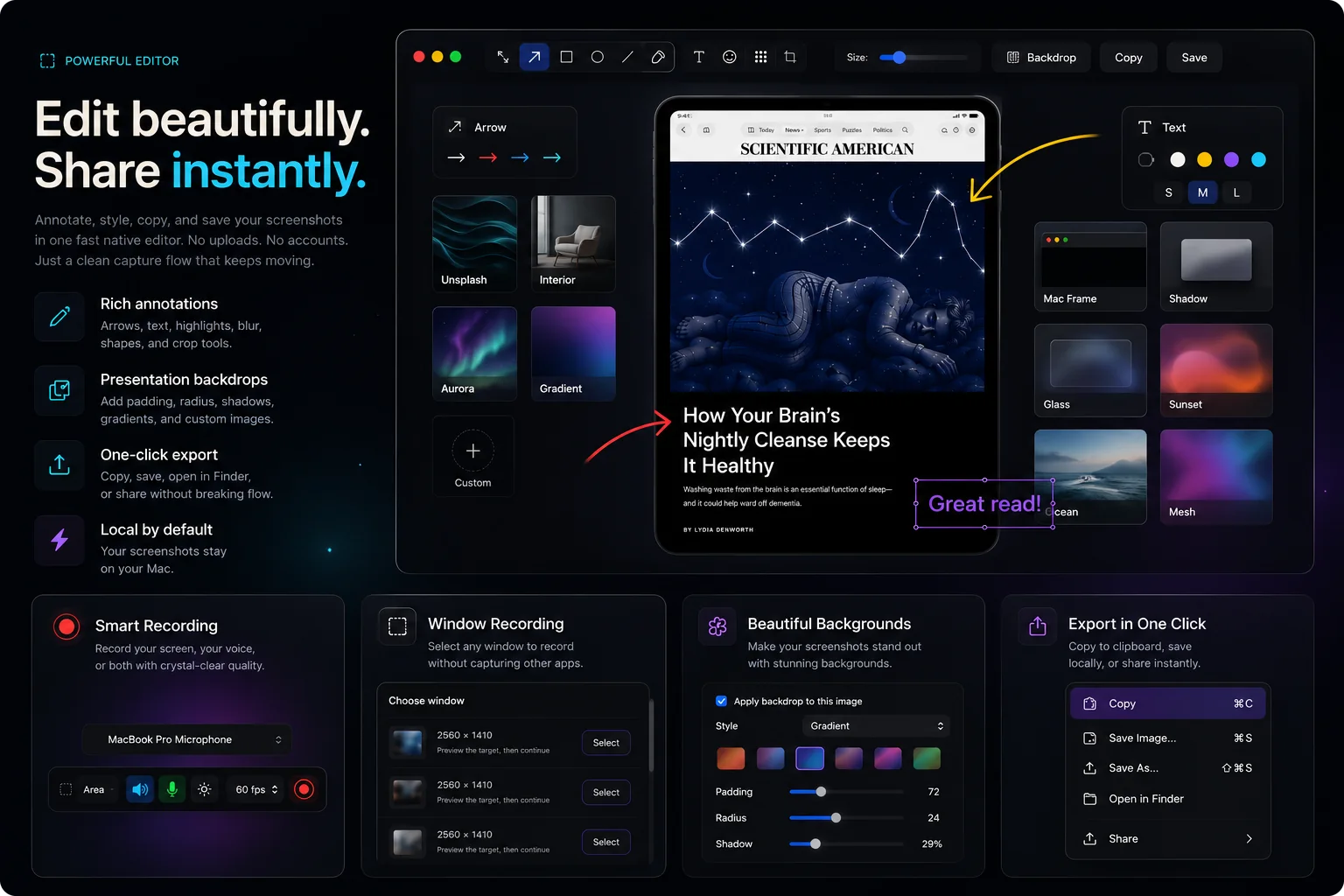
Fifteen tools with full undo
- Arrow, line, rectangle, filled rectangle, ellipse, and freehand drawing. Rectangles can have rounded corners (⌥R).
- Text in any color from 10 to 96 pt, bold or regular, over several lines. Double-click text to edit it again.
- Callouts: a speech bubble that points at what you're talking about.
- Spotlight dims everything except the part that matters.
- A highlighter, plus a freehand highlighter (⇧H) for marking up anything.
- Blur and pixelate with a strength slider. Both fully cover what's under them, right to the edges.
- Numbered step markers for tutorials and bug reports.
- Crop you can undo or change later: annotations stay editable, and Return applies it. Canvas zoom with fit-to-window, and undo/redo for every action, including moves.
Presentation backdrops
Wrap the export in a solid or gradient backdrop with padding, rounded corners, and shadow, or use a generated image-style background or your own image. The editor preview matches the saved and copied output exactly.
Keyboard-first
Every tool has a one-key shortcut, such as A for arrow, T for text, O for callout, S for spotlight, and B for blur. ⌘S saves, ⌘C copies, and ⌘W closes. The editor is a normal window, so it doesn't float over your other apps. Shift and Option constrain shapes, arrow keys nudge, and the editor remembers your last tool, color, and line width between sessions.
Export anywhere
PNG, or JPEG with a quality slider. WebP is offered only where macOS can write it, and current versions can't. Drag straight from the editor or the overlay into Finder, Slack, or any app that accepts an image.
Edits save at full resolution on any display, so a Retina capture edited on a non-Retina monitor keeps every pixel.
How to do it in Shotnix
- Capture, then press ⌘EOr click Edit on the quick access overlay. Captures from history open in the editor too.
- AnnotateArrows, shapes, callouts, text, highlighters, spotlight, blur, pixelate, numbered steps, crop.
- Optional: add a backdropSolid, gradient, generated image, or your own picture, with padding and shadow.
- ⌘C to copy or ⌘S to saveOr drag the result directly into another app.
Questions
Is blur safe for redacting secrets?
Blur and pixelate are baked into the exported pixels and cover what's under them right to the edges; the original data is not stored in the file. Raise the strength slider for text. For highly sensitive text, use coarse pixelation or a filled rectangle, since light blur on known fonts can sometimes be reconstructed.
Can I change the font?
No. Text uses the system font, in any color from 10 to 96 pt, bold or regular, over several lines. Double-click text to edit it again.
Can I edit a screenshot from history later?
Yes. Open any capture from the history panel in the editor.
Does it support numbered steps for tutorials?
Yes. The step marker tool places auto-incrementing numbers you can drag into place.
Can I use my own background image?
Yes. Backdrops can be a solid color, a gradient, a generated image-style preset, or a custom image you choose.
Try it on your own screen.
Shotnix is free, open source, and local, with no watermark. Download the notarized app, or star the repository to follow along.
11.9 MB · Apple silicon (M1 or later) · macOS 13+ · notarized by Apple · MIT license